To Install and Configure Team Foundation Server 2012 see the post here at Team Foundation Server 2012 RC – Install & Configure.
In this post, we will walk through the steps to achieve the following tasks
Scrum is an iterative and incremental agile software development method for managing software projects and product or application development. For Introduction to Agile Project Management Tools, see the blog post @ http://kishore1021.wordpress.com/2011/02/18/agile-project-management-tools/

At this point you can go one of two directions. You can install TFS 2012 or use Windows Azure based Visual Studio Team Foundation Service Preview. Team Foundation Service Preview enables everyone on your team to collaborate more effectively, be more agile, and deliver better quality software. You can sign up at http://tfspreview.com/en-us/ and start using TFS if you want to use the Azure version.
In this post, we will discuss about installing and configuring TFS with VS 2012.
1. On the menu bar, choose VIEW menu and click Team Explorer as shown in Fig 1.


Team Explorer displays the team projects under the selected Team Foundation Server as shown in Fig 6. Note: The contents displayed in Fig 6 might vary depending on the versions of VS.


3. On the Select a Process Template page as shown in Fig 12, in the Which process template should be used to create the team project? drop-down list, select Microsoft Visual Studio Scrum 2.0 as shown in Fig 13.

Microsoft Visual Studio Scrum 2.0 (default) is built for teams practicing the Scrum methodology, and want to use the Scrum terms, such as "Product Backlog Item."
MSF for Agile Software Development 6.0 supports iterative and incremental software development. MSF for Agile can also be used to implement Scrum, however it is adaptive for more general use.
MSF for CMMI Process Improvement 6.0 supports an approach whose goal is to help organizations improve their performance. Development with CMMI emphasizes traceability and auditability.


 Note: It may take several minutes for the wizard to finish.


The iCITE Innovation team project displays in Team Explorer. There are several top-level nodes:

a. Using Visual Studio 2012 and team Explorer to manage the Team Project


I created similar project on windows Azure TFS Service and following is the screenshot. https://kishore1021.tfspreview.com/DefaultCollection/iCITE%20Project

In this post, we will walk through the steps to achieve the following tasks
- Connect to Team Foundation Server – TFS 2012
- Creating a Team Project using Visual Studio Scrum 2.0 process
- Windows Azure TFS Service
Scrum is an iterative and incremental agile software development method for managing software projects and product or application development. For Introduction to Agile Project Management Tools, see the blog post @ http://kishore1021.wordpress.com/2011/02/18/agile-project-management-tools/
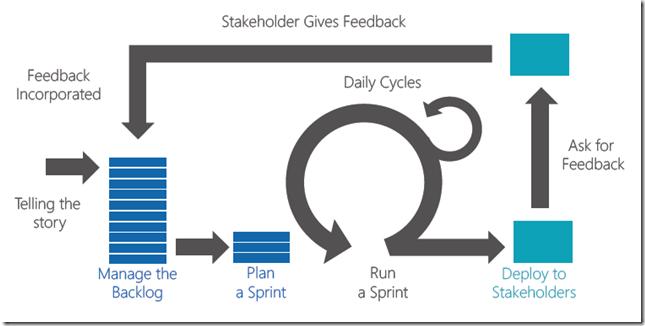
Figure: Pictorial representation of the Scrum development.
For Scrum Process for Software Development using Microsoft Visual Studio Scrum 1.0 Process Template , see the blog post @ http://kishore1021.wordpress.com/2010/08/02/scrum-process-for-software-development-using-microsoft-visual-studio-scrum-1-0-process-template/At this point you can go one of two directions. You can install TFS 2012 or use Windows Azure based Visual Studio Team Foundation Service Preview. Team Foundation Service Preview enables everyone on your team to collaborate more effectively, be more agile, and deliver better quality software. You can sign up at http://tfspreview.com/en-us/ and start using TFS if you want to use the Azure version.
In this post, we will discuss about installing and configuring TFS with VS 2012.
Connect to Team Foundation Server:
All team projects are stored and managed on a Team Foundation Server. To start working on a team project, you must first connect to the appropriate Team Foundation Server. Following are the steps to connect to an instance of Team Foundation Server for the first time.1. On the menu bar, choose VIEW menu and click Team Explorer as shown in Fig 1.
Figure 1: Selecting Team Explorer in Visual Studio 2012
2. Team Explorer is highlighted up as shown in Fig 2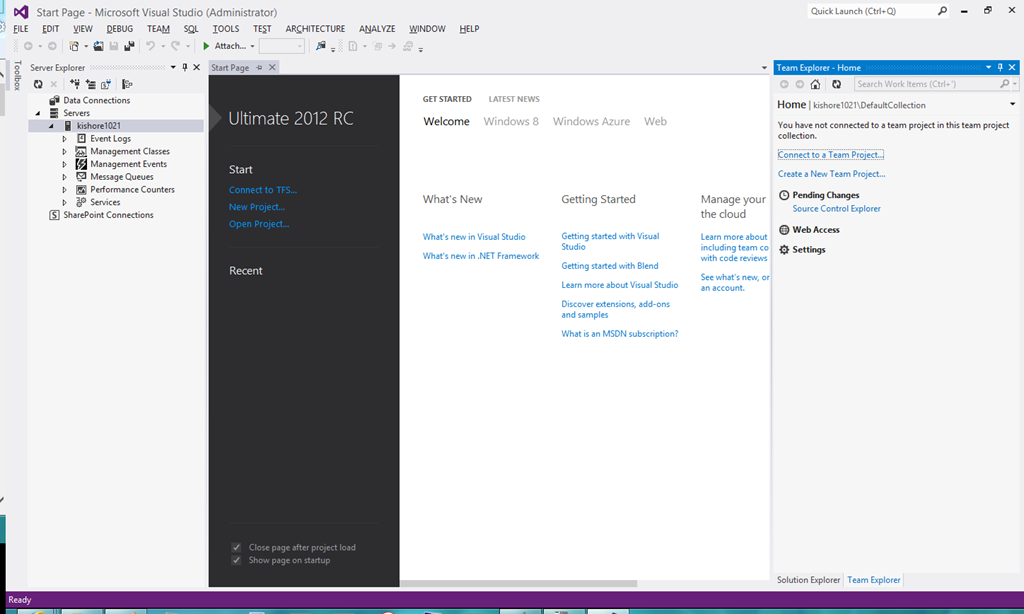
Figure 2: Visual Studio 2012 with Team Explorer
3. On the Team Explorer shown in Fig 3, click Connect to Team Foundation Server.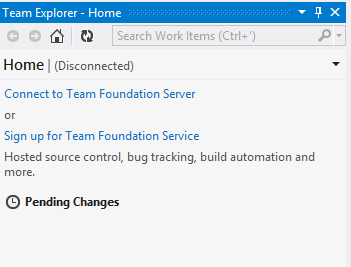
Figure 3: Click the link Connect to Team Foundation Server.
3.1 Step 3 can also be achieved by clicking on the TEAM menu shown in Fig 3.1 and click on Connect to Team Foundation Server.

Figure 3.1 Connecting to Team Foundation Server from the TEAM menu
4. In the Connect to Team Foundation Server dialog box, select a Team
Foundation Server from the drop-down list as shown in Fig 4.
Figure 4: Connecting to Team Foundation Server
Note: If the drop-down list is empty, click the Servers button to
manually enter the Team Foundation settings as shown in Fig 4.1. Contact
your Team Foundation Server administrator or team project administrator
for the correct Team Foundation Server connection settings.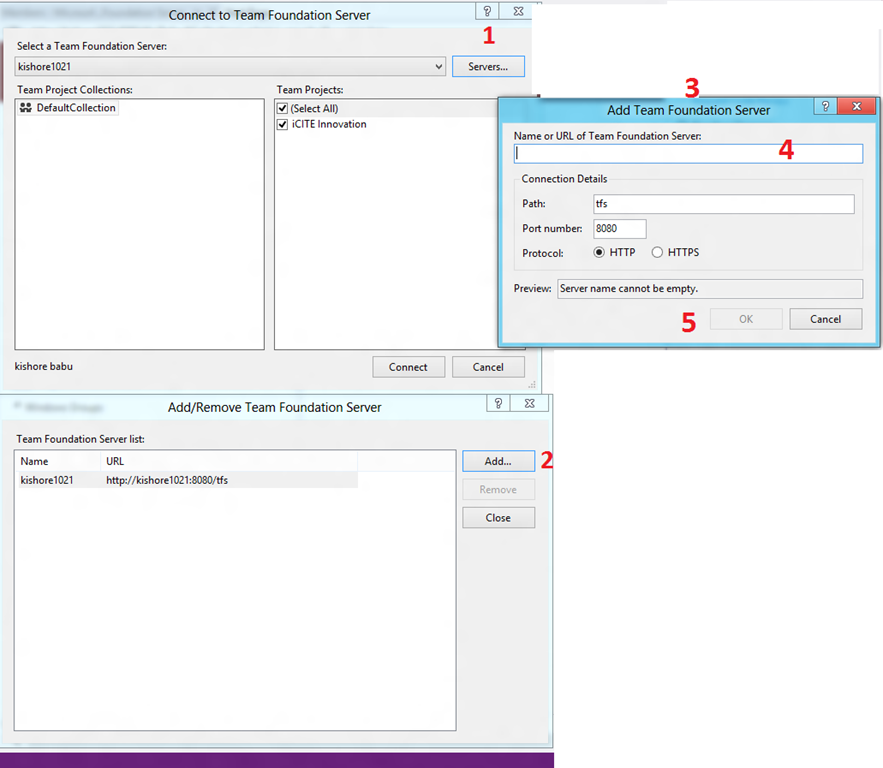
Figure 4.1: Manually enter the Team Foundation settings
-
In the Connect to Team Project dialog box, choose the Servers button.
-
In the Add/Remove Team Foundation Server dialog box, choose the Add button.
-
In the Add Team Foundation Server dialog box, type the name or URL for the server.
-
When you type a server name, the Preview field automatically displays the URL format, for example:
http:// ServerName:Port/tfs
ServerName is the name of the server that hosts Team Foundation Server.
Port is the port that Team Foundation Server uses; the default value is 8080. If your server uses a different port number, you must specify it in the Port number box.
tfs is the default path to the project collections that are stored on the server. If your team uses a different path, type it in the Path box.
-
Verify that the URL is correct, choose the OK button twice, and then choose the Close button.
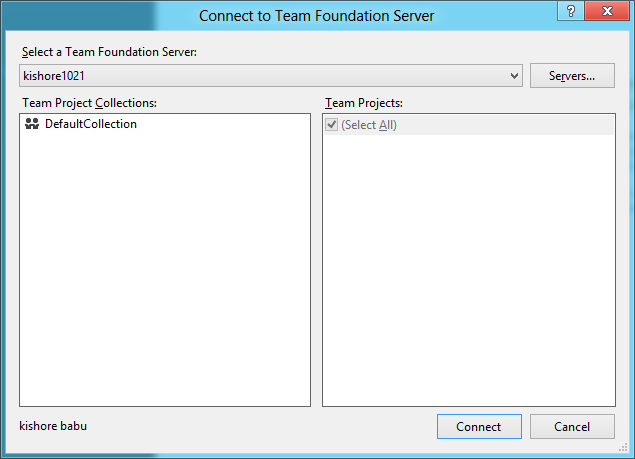
Figure 5: Connect to Team Project and choose the Team Projects
6. Click OK.Team Explorer displays the team projects under the selected Team Foundation Server as shown in Fig 6. Note: The contents displayed in Fig 6 might vary depending on the versions of VS.
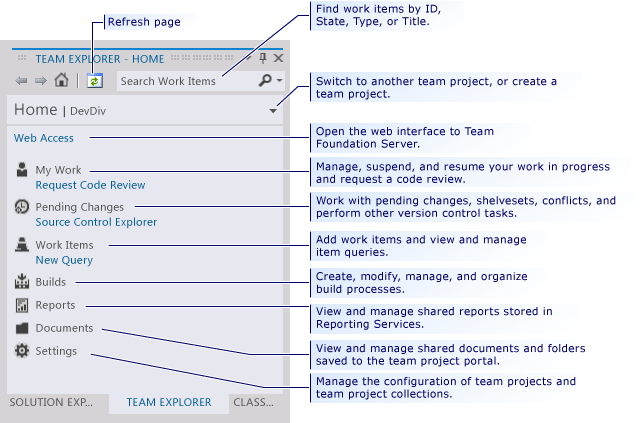
Fig 6: Details of Team Explorer
Note: Team projects are created on a Team Foundation Server,
therefore, you must connect to a Team Foundation Server as described in
the above 6 steps before perform Creating a Team Project. After you have
connected, you can create a team project.Creating a Team Project
Software projects in Team Foundation are called team projects and are very different from the software projects (.csprj or .vbproj) in Visual Studio. The team project is the central concept that holds together the team endeavor of creating a specific software technology or product. When you create a team project, the New Team Project Wizard creates a number of focal points by which to centralize the team efforts. A team project Web site is created containing document templates, and predefined reports. A work item database is created for tracking all effort on the project. A process template is installed that determines rules, policies, security groups, and queries for all work effort. A source code branch is created for source control.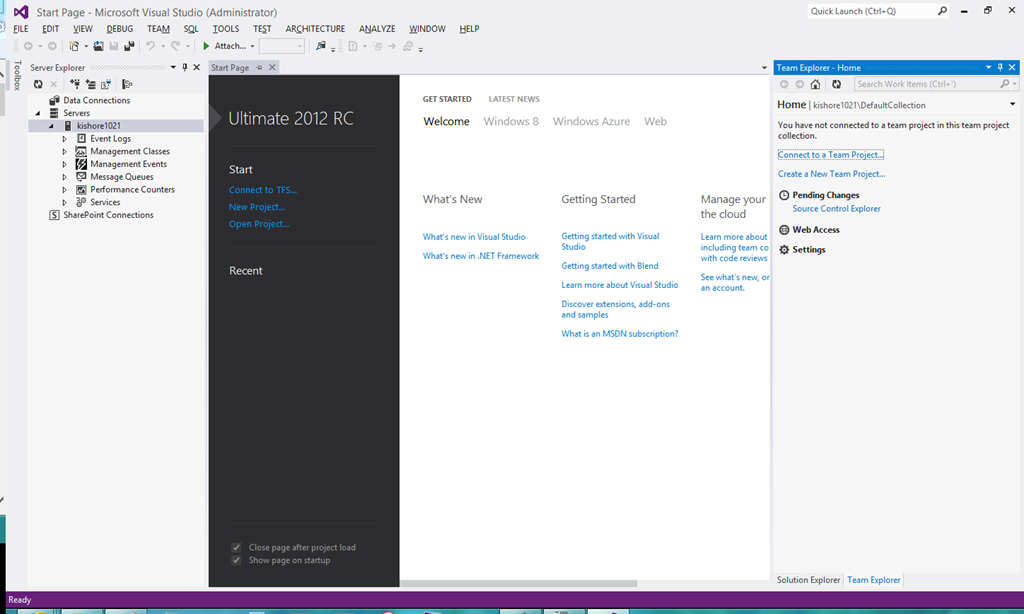
Figure 7: A project is where you store all your source code, as well as tasks and builds.
1. Team project can be created by using any of the following methods (a, b or c).a. On the File menu, point to New, and then click Team Project as shown in Fig 8
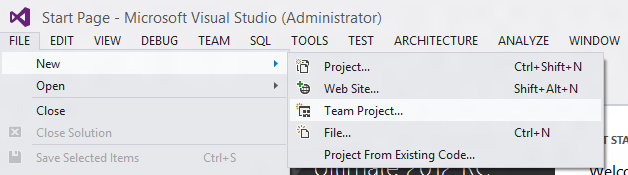
Figure 8: Creating a Team Project from File Menu
b. In Team Explorer click Create a New Team Project as shown in Fig 9
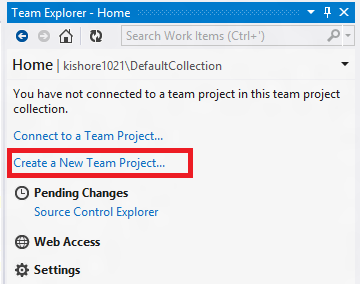
Figure 9: Creating a New Team Project from Team Explorer links
c. In Team Explorer click Drop Down Icon, select Project and My Teams, Click on New Team Project as shown in Fig 10
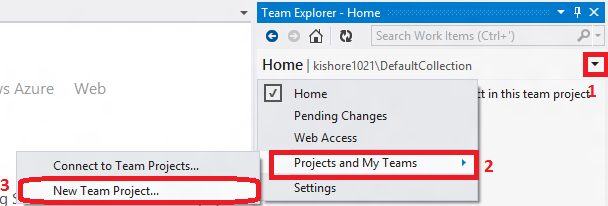
Figure 10: 3 steps to create a team project using Home drop down options.
2. The New Team Project wizard appears. On the Specify the Team
Project Settings page, type your project name in the What is the name of
the team project? box as shown in Fig 11. click Next.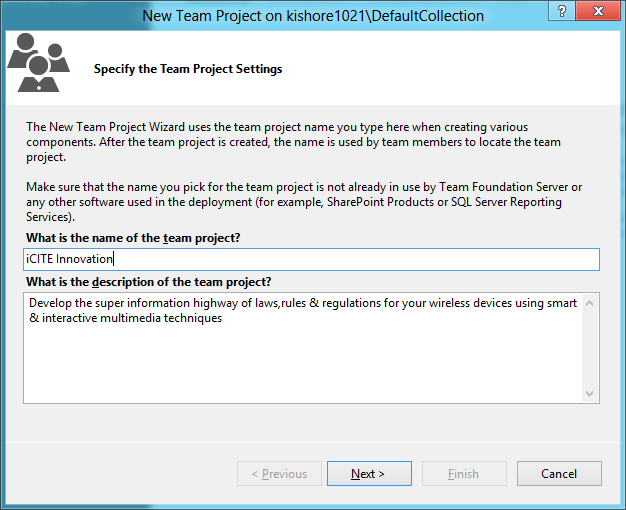
Figure 11: Specify the Team Project Settings
Note: Going ahead, I will be using iCITE as the project name.3. On the Select a Process Template page as shown in Fig 12, in the Which process template should be used to create the team project? drop-down list, select Microsoft Visual Studio Scrum 2.0 as shown in Fig 13.
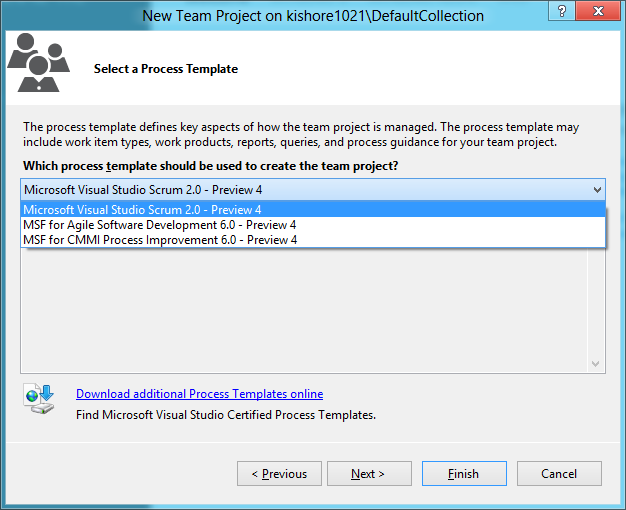
Figure 12: Selecting process template for the New team Project
Team Explorer includes process templates based on the Microsoft
Solutions Framework (MSF). Some of the process templates are available
by default: Microsoft Visual Studio Scrum 2.0, MSF for Agile Software
Development – v6.0, and MSF for CMMI Process Improvement – v6.0. Your
team or organization may provide additional process templates or may
remove the MSF templates. Here’s some help about what process template
to choose:Microsoft Visual Studio Scrum 2.0 (default) is built for teams practicing the Scrum methodology, and want to use the Scrum terms, such as "Product Backlog Item."
MSF for Agile Software Development 6.0 supports iterative and incremental software development. MSF for Agile can also be used to implement Scrum, however it is adaptive for more general use.
MSF for CMMI Process Improvement 6.0 supports an approach whose goal is to help organizations improve their performance. Development with CMMI emphasizes traceability and auditability.
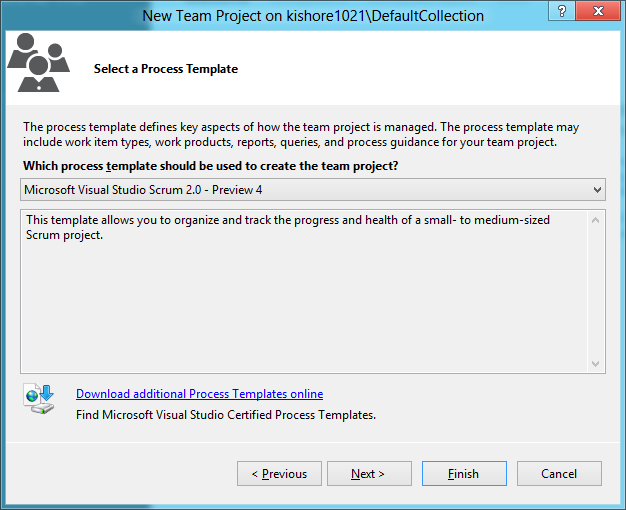
Figure 13: Selecting Microsoft Visual Studio Scrum 2.0 for the New team Project
4. On the Specify the Source Control Settings page shown in fig 14, keep the default values and click Next.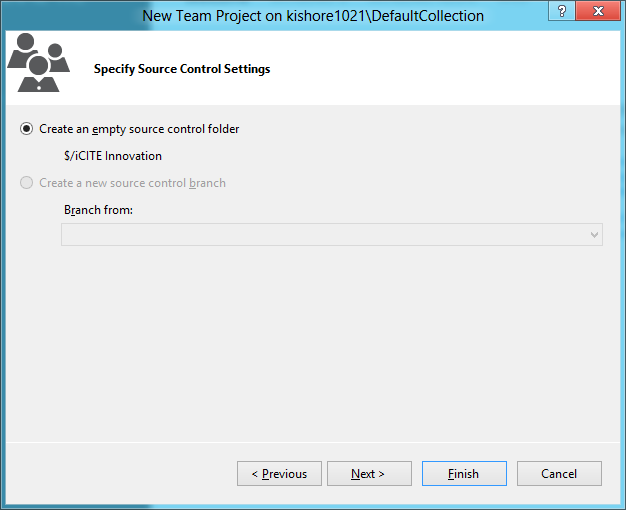
Figure 14: Source Control folder path
5. On the Confirm the Team Project Settings page shown in Fig 15 , click Finish.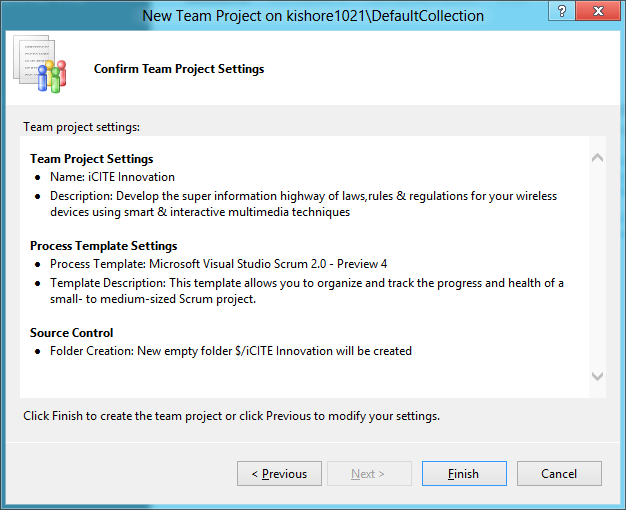
Figure 15: Confirming the settings for the New Team Project
6. The New Team Project wizard creates your new team project as shown in Fig 16.Note: It may take several minutes for the wizard to finish.
Figure 16: Status showing the Team Project Creation.
7. On the Team Project Created page shown in Fig 17, click Close.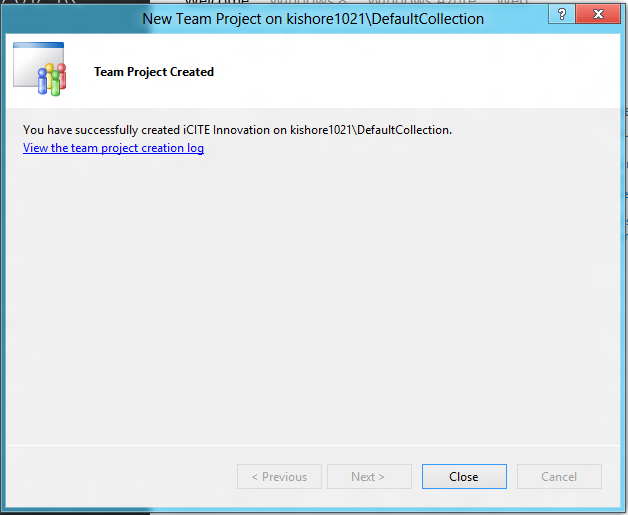
Figure 17: Successful creation of Team Project.
Because the check box for Launch the process guidance for more
information about running the team project was selected by default, the
wizard opens the overview page for the process guidance for MSF Agile
for Software Development.The iCITE Innovation team project displays in Team Explorer. There are several top-level nodes:
-
My Work: This node provides access to the tasks assigned to me.
-
Pending Changes: This node provides access to the team project source control management hierarchy.
-
Work Items: This node provides access to add work items and to create and view queries against the work item database.
-
Builds This node provides access to the builds of your team project.
-
Web Access: Click on Web Access opens up the web page for the project.
-
Settings: Clicking on settings brings up the Project Settings page in team Explorer as shown in Figure 18.
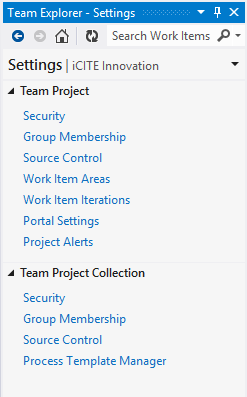
Figure 18: Team Project Settings displayed in Team Explorer.
From here on, you can either use the Team Explorer in Visual Studio
2012 or using the browser for planning and tracking projects.a. Using Visual Studio 2012 and team Explorer to manage the Team Project
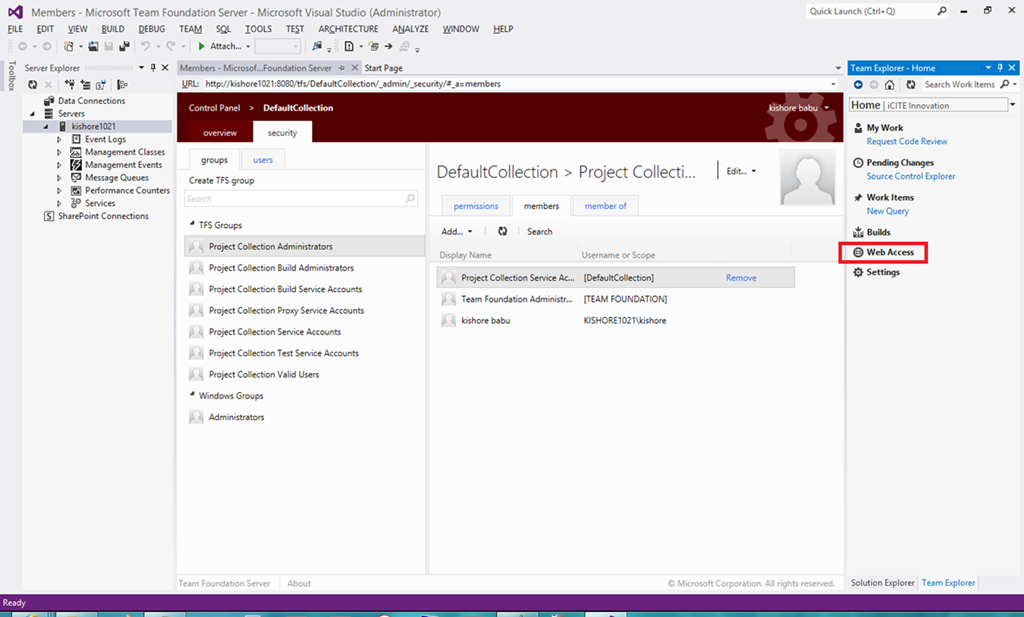
Figure 19: Opening http://kishore1021:8080/tfs/DefaultCollection/iCITE%20Innovation/_admin/_security in Visual Studio 2012.
b. You can also use Web Browser to manage the Team Project. In the
Team Explorer home navigation menu for the team project, choose Web
Access to launch the browser as shown in Fig 19. A browser window will
open to the home page for that team project with the URL http://ServerName:Port/tfs/CollectionName/ProjectName For ex, http://kishore1021:8080/tfs/DefaultCollection/iCITE%20Innovation/
Figure 20: Managing the Team Project through browser.
FYI: Click on the settings (gear) icon located on the top upper right
hand corner in the browser window shown in figure 20 brings up the
browser window shown in Figure 21.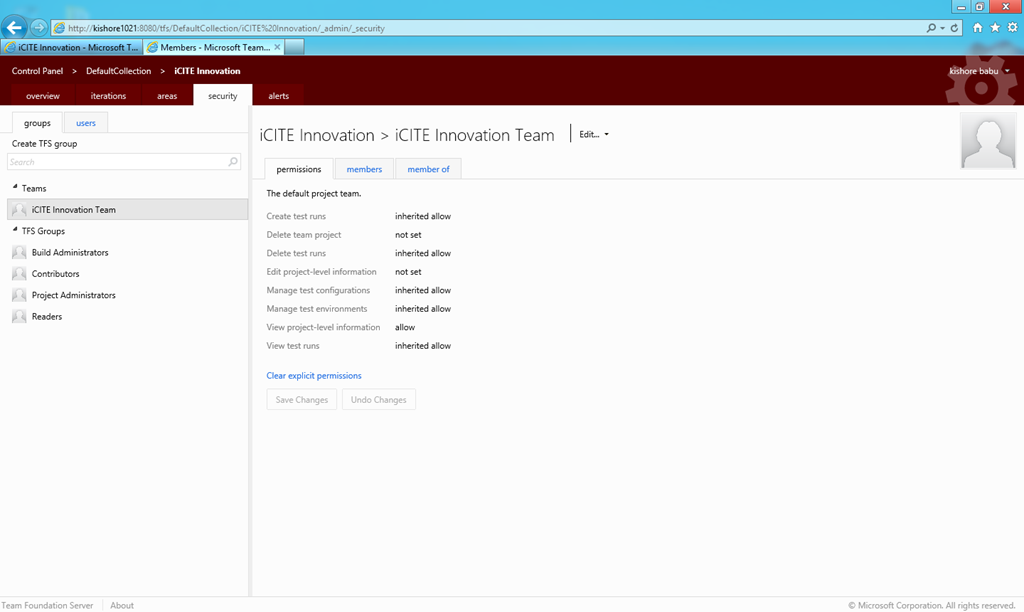
Figure 21: Control Panel of the Team Project
Fig 22 shows the Control Panel of the Team Project as seen from the browser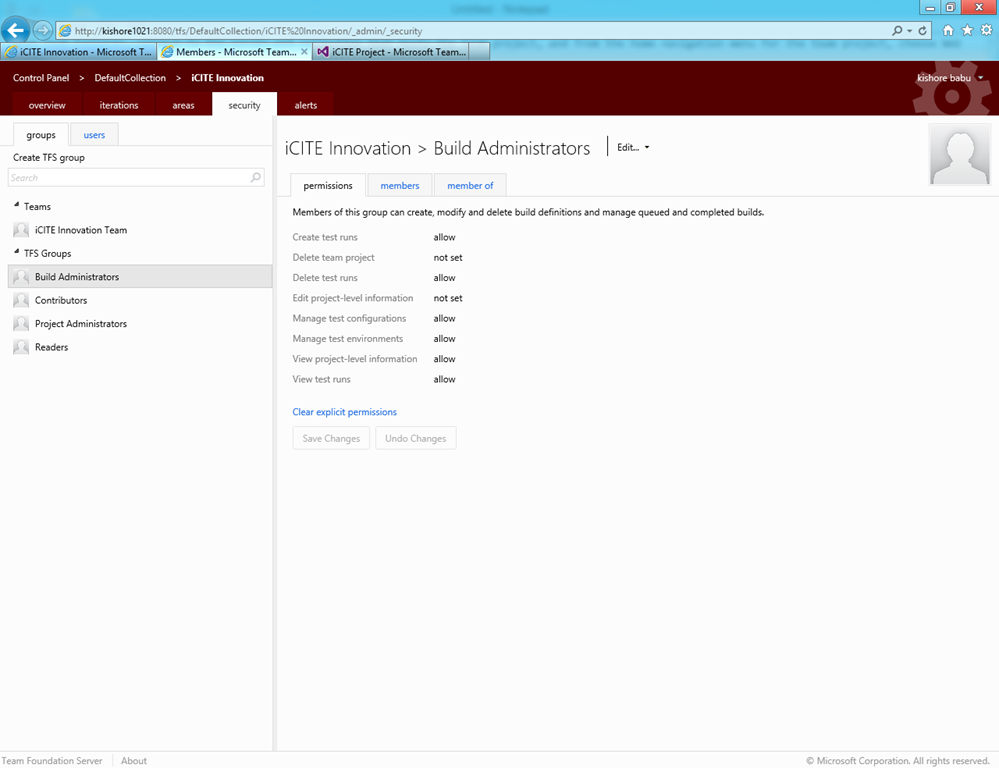
Figure 22: Control Panel of the Team Project
Windows Azure TFS Service:
Microsoft announced the availability of Windows Azure based Visual Studio Team Foundation Service. To get started, signup for TFS at http://tfspreview.com/.I created similar project on windows Azure TFS Service and following is the screenshot. https://kishore1021.tfspreview.com/DefaultCollection/iCITE%20Project
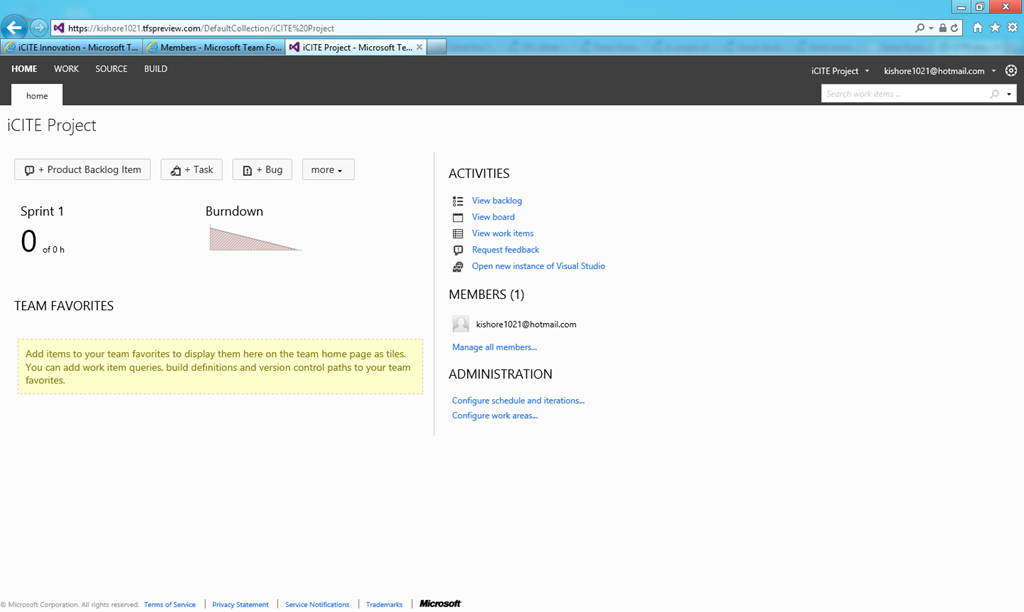
Figure 23: Team collaboration and agile planning in Windows Azure TFS Service.
To get started on using TFS on Windows Azure, see the blog http://blogs.msdn.com/b/bharry/archive/2011/09/14/team-foundation-server-on-windows-azure.aspx

No comments:
Post a Comment