Thursday, December 13, 2012

Google Maps Navigation (Beta)

Google Maps Navigation (Beta)

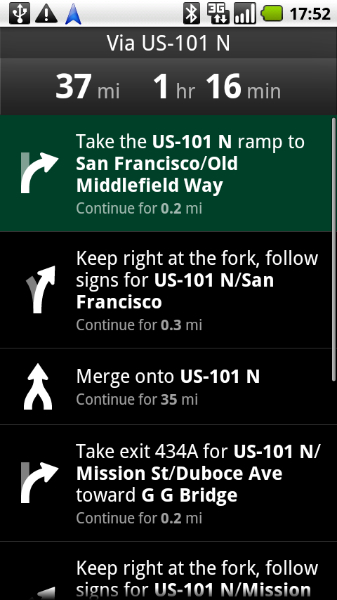
Google Maps Navigation is an internet-connected GPS navigation system with voice guidance. Watch video

Get Google Maps Navigation (Beta)

To get the latest release of Google Maps with Navigation, search for 'Google Maps' in Google Play.


Click thumbnail to see larger image

Features

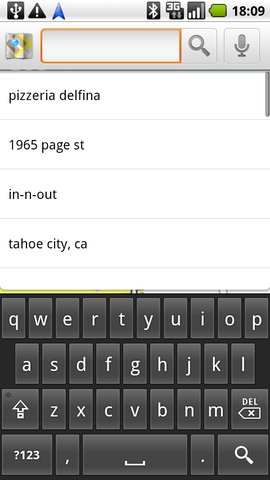
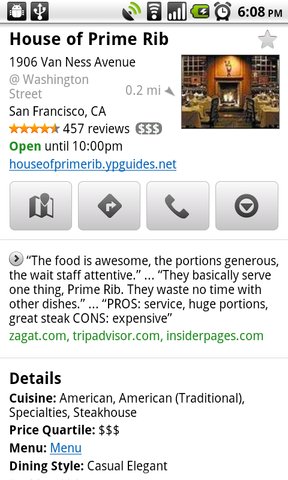
  • Search in plain English No need to know the address. You can type a business name or even a kind of a business, just like you would on Google.
    Watch video
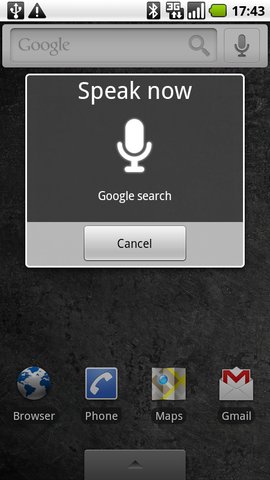
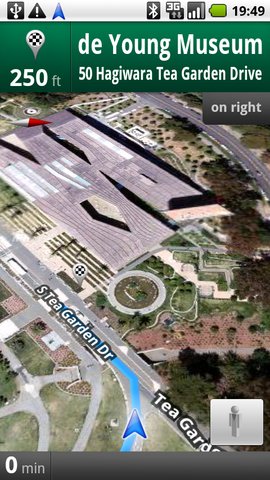
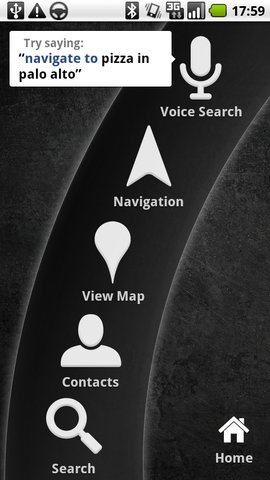
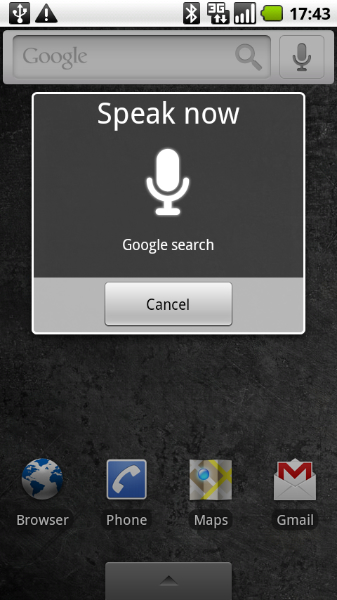
  • Search by voice Speak your destination instead of typing (English only): "Navigate to the de Young Museum in San Francisco".
    Watch video
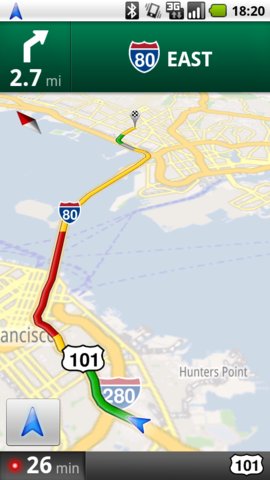
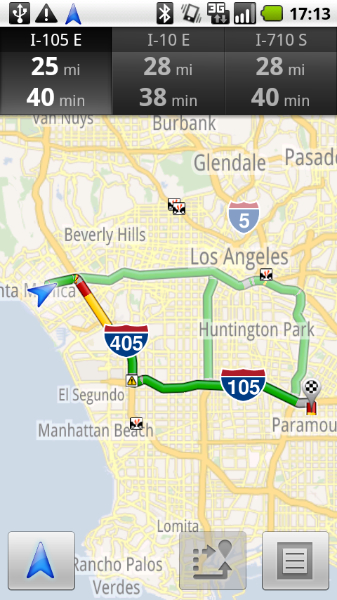
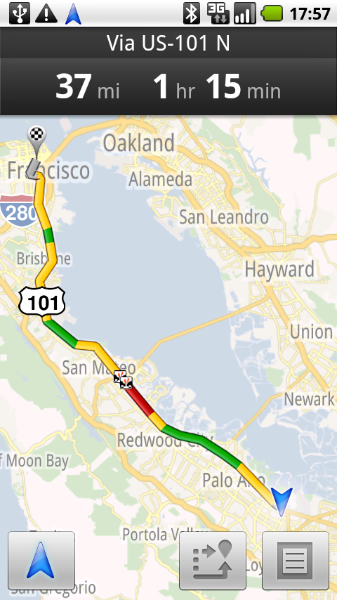
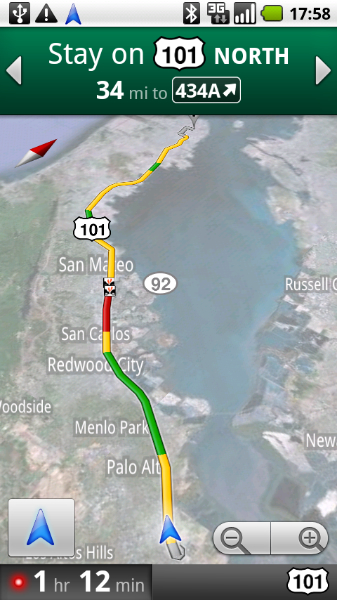
  • Traffic view An indicator glows green, yellow, or red based on the current traffic along your route. Touch it to see traffic ahead of you.
    Watch video
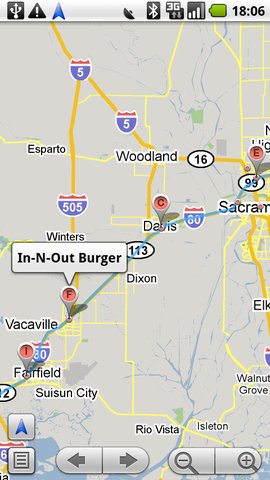
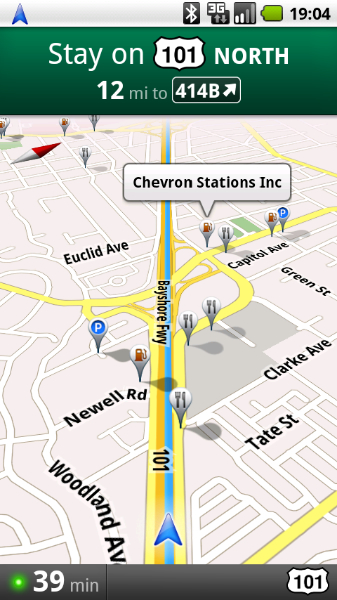
  • Search along route Search for any kind of business along your route, or turn on popular layers such as gas stations, restaurants, or parking.
    Watch video
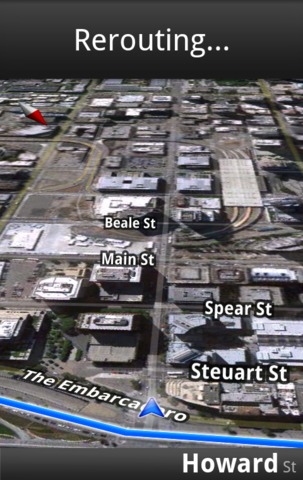
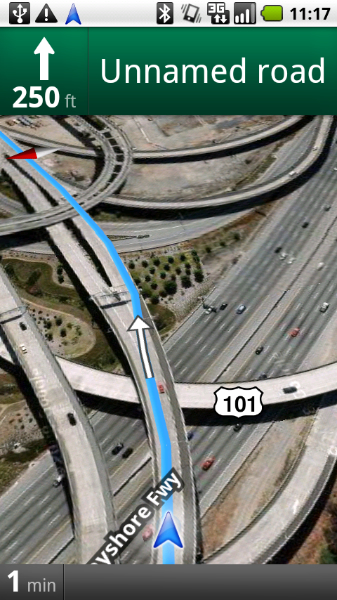
  • Satellite view View your route overlaid on 3D satellite views with Google's high-resolution aerial imagery.
    Watch video
  • Street View Visualize turns with Street View imagery. Navigation automatically switches to Street View as you approach your destination.
    Watch video
  • Car dock mode Car dock mode makes it easy to use your device at arm's length (Android 2.0 devices or higher).
    Watch video
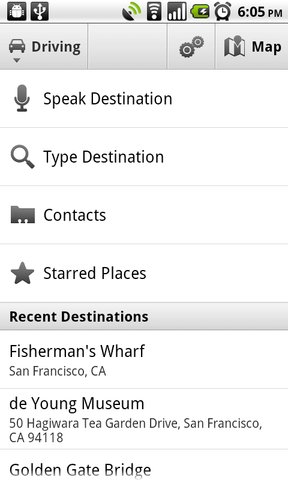
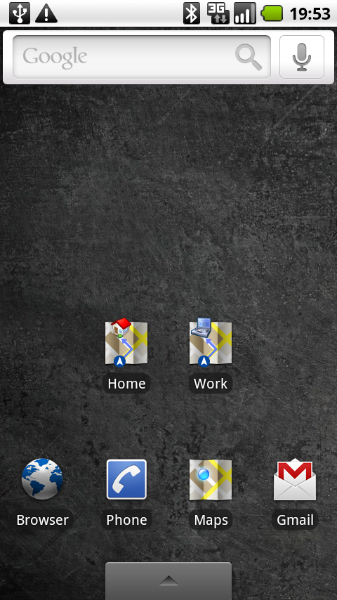
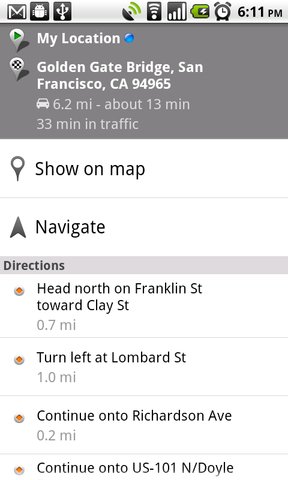
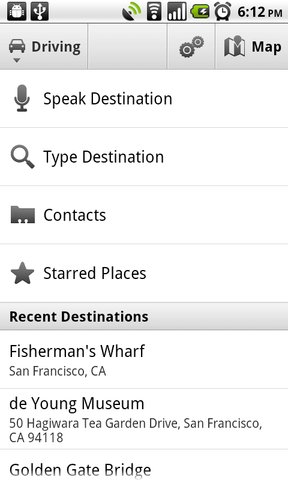
  • Navigation shortcut Select the Navigation icon from the launcher to start quickly; pick a destination by search (speak or type), contacts, starred items, or recent destinations.
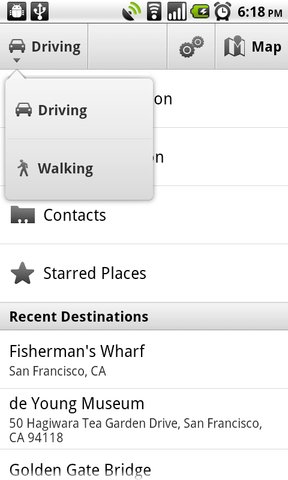
  • Walking Navigation (Beta) Get voice-guided navigation for walking directions. Device vibrates for turn notifications.
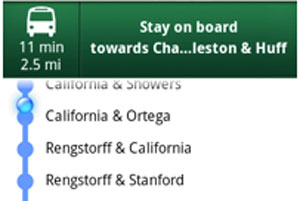
  • Transit Navigation (Beta) New! Get navigation for public transit directions in 400 cities around the globe. Device shows location along transit route and provides alerts for when to stay on or exit public transit.
    Watch video
  • Offline reliability Get continuous guidance and automatic rerouting, even if you lose your network connection after you’ve begun a route.

Screenshot Gallery


Google Maps

Description

Download the latest release of Google Maps, and never carry a paper map again. Google Maps for Android with Navigation (Beta) has:* Detailed maps with 3D buildings
* Voice guided turn-by-turn GPS navigation
* Driving, public transit, biking, and walking directions
* Live traffic information to avoid congestion
* Local search and business reviews
* Google Maps Street View
* Indoor maps for select airports, hotels, retail stores, and more
Whether you need directions to your destination, the closest good place for a bite to eat, or just a sense of where you are, Google Maps for Android can help.
Keywords: maps, navigation, places, latitude, directions, indoor maps, local search, Street View, traffic, transit
More
Visit Developer's WebsitePrivacy Policy

App Screenshots


Wednesday, December 12, 2012

How To Upload file Into a SharePoint Document Library

How To Upload file Into a SharePoint Document Library

The Requirement ....

Original file : C:\swsetup\SP51083\Vista\example.docx

SharePoint Location :http://talliance.domainx.local:12345/DocLibName/swsetup/SP51083/Vista/


highlighted area represent the directory path which they need to upload the file (I have discussed how to create this inside the document library)
highlighted area represent the document library which they need to upload the file.


How to do that ?? 


For this I have introduce a function which responsible to upload the required file into the correct location.


spServerURL : The URL of the application [Eg: http://myspweb:8000/]

spDocumenttargetUrl :  the name of the document library which you need to upload documents 

folder : location of the doc lib which need to upload our file

FileToUpload : the physical location of the file which need to upload (Eg : C:\swsetup\SP51083\Vista\example.docx)


Overwirte : saying where file should be overwrite, if it existing or leave it as it is.  


public static void CreateSPFile(string spServerURL, string spDocumenttargetUrl, string folder, string fileToUpload, bool overwrite)
        {
            // I suggest skip this pre check since it internally opens a new site object
            // If you have to silenlty ignore non-existant SPSite you should catch a FileNotFoundException.
            if (SPSite.Exists(new Uri(spServerURL)))
            {
                // use the using construct to safely dispose the opened SPSite object
                using (SPSite site = new SPSite(spServerURL))
                {
                    // SPWeb object opened with SPSite.OpenWeb() have to be disposed as well
                    using (SPWeb web = site.OpenWeb())
                    {
                        web.AllowUnsafeUpdates = true;
                        string targetUrl = string.Concat("\\", spDocumenttargetUrl);
                        if (!String.IsNullOrEmpty(folder))
                        {
                            targetUrl = string.Concat(targetUrl + folder);
                        }
                        SPFolder target = web.GetFolder(targetUrl);
                        String fileName = System.IO.Path.GetFileName(fileToUpload);
                        FileStream fileStream = File.OpenRead(fileToUpload);
                        SPFileCollection files = target.Files;
                        target.Files.Add(fileName, fileStream, overwrite);
                    }
                }
            }
        }


Let's Move from Line by Line ....
I'm gonna explain, only the most important lines in this function.

SPWeb web = site.OpenWeb()
web.AllowUnsafeUpdates = true;


when you have a list and if you want to update something, then you need to set AllowUnsafeUpdates = true for the web and the best practice is, after you have done you need to set it back to false. but in here i haven't make it false coz this process going through a massive loop so it'take time and might be crashed. and also "Setting this property to true opens security risks, potentially introducing cross-site scripting vulnerabilities" (by msdn).

string targetUrl = string.Concat("\\", spDocumenttargetUrl);
                        if (!String.IsNullOrEmpty(folder))
                        {
                            targetUrl = string.Concat(targetUrl + folder);
                        }
Crete target folder URL by combining Folder location and document library relative URL
    

String fileName = System.IO.Path.GetFileName(fileToUpload);
                        FileStream fileStream = File.OpenRead(fileToUpload);

Convert the physical file into the data stream which we are going to add into the required location.

SPFileCollection files = target.Files;
Get the file collection on the target location.

target.Files.Add(fileName, fileStream, overwrite);
Add the stream into the required location.


...  ...

Wednesday, December 5, 2012

WCF

ntroduction

The reason for publishing this article is that I think that a lot of people are going to use the new .NET 3.0 WCF. It is simple to use, and seems very powerful. I have spend a lot of time debugging this program, and I hope that this article will prevent other people from getting the same headache that I had because of a funny security exception that I would get all the time. Use the code directly or as an inspiration. I assume that the reader is familiar with client/server coding, and will therefore not get into details. It is said that WCF is very dynamic regarding the transfer methods, and can be configured to use almost any communication standard which makes it suitable for many client/server applications. It does not matter if you use HTTP, TCP etc., to transfer data, and the optional SSL / Encryption makes the WCF even more suited for large scale solutions.

Background

The project is straightforward, really. The source contains some files that I used to develop the application. The source contains the ServiceLibrary that is the contract compiled into a simple DLL. Don't confuse the difference between the contract and the proxy. The contract is a sort of a way to communicate, and the proxy is a way to get access to another remote contract. The other two libraries are almost self-explaining, the WCFClient and the WCFService. The goal was to create a dynamic client server solution that is not bound by configuration files etc., but is more dynamic. Plus don't underestimate the fun writing the code :) Thanks to Gedebuk, Denmark.
The Proxy.cs code is auto-generated by svcutil.exe. If you need to re-create the Proxy.cs, start the service and run the command: "C:\Program Files\Microsoft SDKs\Windows\v6.0\Bin\svcutil.exe" http://localhost:8001/MyService /out:Proxy.cs.

Using the code

The code consists of two folders that are loaded into one project file.

How did I create the project?

In this section, I will describe how I created the project. The steps are listed in sequence and are numbered.

1) Creating the ServiceLibrary.cs

I created the project by starting off with the ServiceLibrary. This library is compiled into a DLL which is used on the client (or clients for that matter). In WCF terms, this is the contract that the client must obey in order to be able to communicate with the server. This contract is in fact an interface that the client(s) communicates through. The ServiceLibrary contains all the methods that can be called by the client. In this example, it also holds the implementation for the service. The DataContract has the mark [DataContract] that indicates that it's an object that can be transferred. In WCF, it does not matter if it is a simple type, like a string, or a complex type like an object that is transferred over the wire. Below is a copy/paste from my contract.
using System;
using System.Collections.Generic;
using System.Text;
using System.ServiceModel;
using System.Runtime.Serialization;

namespace ServiceLibrary
{
    // You have created a class library to
    // define and implement your WCF service.
    // You will need to add a reference to this
    // library from another project and add 
    // the code to that project to host the
    // service as described below.  Another way
    // to create and host a WCF service is by
    // using the Add New Item, WCF Service 
    // template within an existing project such
    // as a Console Application or a Windows 
    // Application.

    [ServiceContract()]
    public interface IService1
    {
        [OperationContract]
        string MyOperation1(string myValue);
        [OperationContract]
        string MyOperation2(DataContract1 dataContractValue);
        [OperationContract]
        string HelloWorld(string str);
    }

    public class service1 : IService1
    {
        public string MyOperation1(string myValue)
        {
            return "Hello: " + myValue;
        }
        public string MyOperation2(DataContract1 dataContractValue)
        {
            return "Hello: " + dataContractValue.FirstName;
        }
        public string HelloWorld(string str)
        {
            return "Helloworld from " + str;
        }
    }

    [DataContract]
    public class DataContract1
    {
        string firstName;
        string lastName;

        [DataMember]
        public string FirstName
        {
            get { return firstName; }
            set { firstName = value; }
        }
        [DataMember]
        public string LastName
        {
            get { return lastName; }
            set { lastName = value; }
        }
    }
}
The code is something that the Visual Studio project generates for me. I've only added the HelloWorld part of this code. The VS environment did also generate a how-to on Adding a Service Reference. I've skipped that and deleted those parts. You can either configure the program from a configuration file that is a part of Visual Studio, or add the configuration in the code, or code the configuration. I have chosen to configure the service inside the code. One would argument about the ease of changing an XML file instead of recompiling the project if changes in the client/server relation occurs, but I have chosen to do this in order for the program to be able to configure itself in future implementations. This code will act as a core function in a rather large client/server solution where computers will contact other computers randomly via WCF. This requires the program to be able to change the runtime, and is the main reason for this code to be controlled in-code.

2) Creating the Service-Host Application

The service-host application is the program that holds the service that has the actual objects. This is the server if you like to call it that.
I created a Windows Forms project and added the following code:
using System;
using System.Collections.Generic;
using System.ComponentModel;
using System.Data;
using System.Drawing;
using System.Text;
using System.Windows.Forms;
using System.Net;
using System.ServiceModel;
using System.ServiceModel.Description;

namespace WCFService
{
    public partial class MainForm : Form
    {
        private ServiceHost host = null;
        private string urlMeta, urlService = "";

        public MainForm()
        {
            InitializeComponent();
            Append("Program started ...");
        }

        void host_Opening(object sender, EventArgs e)
        {
            Append("Service opening ... Stand by");
        }

        private void button1_Click(object sender, EventArgs e)
        {
            try
            {
                // Returns a list of ipaddress configuration
                IPHostEntry ips = Dns.GetHostEntry(Dns.GetHostName());

                // Select the first entry. I hope it's this maschines IP
                IPAddress _ipAddress = ips.AddressList[0];

                // Create the url that is needed to specify
                // where the service should be started
                urlService = "net.tcp://" + 
                    _ipAddress.ToString() + ":8000/MyService";

                // Instruct the ServiceHost that the type
                // that is used is a ServiceLibrary.service1
                host = new ServiceHost(typeof(ServiceLibrary.service1));
                host.Opening += new EventHandler(host_Opening);
                host.Opened += new EventHandler(host_Opened);
                host.Closing += new EventHandler(host_Closing);
                host.Closed += new EventHandler(host_Closed);

                // The binding is where we can choose what
                // transport layer we want to use. HTTP, TCP ect.
                NetTcpBinding tcpBinding = new NetTcpBinding();
                tcpBinding.TransactionFlow = false;
                tcpBinding.Security.Transport.ProtectionLevel = 
                   System.Net.Security.ProtectionLevel.EncryptAndSign;
                tcpBinding.Security.Transport.ClientCredentialType = 
                   TcpClientCredentialType.Windows;
                tcpBinding.Security.Mode = SecurityMode.None;
                // <- Very crucial

                // Add a endpoint
                host.AddServiceEndpoint(typeof(
                   ServiceLibrary.IService1), tcpBinding, urlService);

                // A channel to describe the service.
                // Used with the proxy scvutil.exe tool
                ServiceMetadataBehavior metadataBehavior;
                metadataBehavior = 
                  host.Description.Behaviors.Find<ServiceMetadataBehavior>();
                if (metadataBehavior == null)
                {
                    // This is how I create the proxy object
                    // that is generated via the svcutil.exe tool
                    metadataBehavior = new ServiceMetadataBehavior();
                    metadataBehavior.HttpGetUrl = new Uri("http://" + 
                          _ipAddress.ToString() + ":8001/MyService");
                    metadataBehavior.HttpGetEnabled = true;
                    metadataBehavior.ToString();
                    host.Description.Behaviors.Add(metadataBehavior);
                    urlMeta = metadataBehavior.HttpGetUrl.ToString();
                }

                host.Open();
            }
            catch (Exception ex1)
            {
                Console.WriteLine(ex1.StackTrace);
            }
        }

        private void button2_Click(object sender, EventArgs e)
        {
            host.Close();
        }

        void host_Closed(object sender, EventArgs e)
        {
            Append("Service closed");
        }

        void host_Closing(object sender, EventArgs e)
        {
            Append("Service closing ... stand by");
        }

        void host_Opened(object sender, EventArgs e)
        {
            Append("Service opened.");
            Append("Service URL:\t" + urlService);
            Append("Meta URL:\t" + urlMeta + " (Not that relevant)");
            Append("Waiting for clients...");
        }

        private void Append(string str)
        {
            textBox1.AppendText("\r\n" + str);
        }
    }
}
The interesting part is of course the button1_Click which creates the service and makes the service public to other clients. Now for other clients to connect to this service, the service needs a contract. The contract is not something that one would write themselves, and that's why I use the scvutil.exe tool. On my PC, the tool is located at C:\Program Files\Microsoft SDKs\Windows\v6.0\Bin\svcutil.exe. In order to make the contract object (that is actually the proxy that clients connect to), we need to generate Proxy.cs (the name of the file is not relevant at all, could be foo.cs as well). This will happen in step 3.

3) Building the Proxy Object for Clients to Use

The proxy object is built from the service description that is located on port 8001 (check the code). It reads the meta data from the service, and constructs the contract that is needed by clients when they want to communicate with the service.

  1. First, start the service and hit the "Start service" button. This creates the service. All meta info is published for other clients or tools to read them.
  2. Second, run "C:\Program Files\Microsoft SDKs\Windows\v6.0\Bin\svcutil.exe" http://localhost:8001/MyService /out:Proxy.cs. This creates two files. A Proxy.cs file and an XML config file. I discard the config file because I'll configure the service inside the program. You should consider putting the "C:\Program Files\Microsoft SDKs\Windows\v6.0\Bin\svcutil.exe" http://localhost:8001/MyService /out:Proxy.cs in a bat file to make it easier for yourself. I have included my bat file for you to see. It resides in the "ProxyGenerator" folder.

    Next, I create a simple client and add relevant code to it.

4) Creating a Client Application and Adding Relevant Code to it

Now, we create a simple standard client program as a Windows Forms apllication. Once the files are generated (Proxy.cs and output.config <- can be suppressed), I add the Proxy.cs to my client program which is called WCFClient. Now, the client knows the contract and is able to obey it in order to create a communication channel to the service. One could compile the Proxy.cs into a DLL and simply add the DLL to the client (a cleaner way to add something that is crucial as a communication contract or interface, I think). For demonstration, we leave the Proxy.cs as it is and add it to the client project. Next, and the last step: we need to add some simple client code in order to retrieve the service proxy object. My client code looks like this:
using System;
using System.Collections.Generic;
using System.ComponentModel;
using System.Data;
using System.Drawing;
using System.Text;
using System.Windows.Forms;
using System.ServiceModel;

namespace WCFClient
{
    public partial class Form1 : Form
    {
        string endPointAddr = "";

        public Form1()
        {
            InitializeComponent();
        }

        private void button1_Click(object sender, EventArgs e)
        {
            if (textBox1.Text != "")
            {
                endPointAddr = "net.tcp://" + textBox2.Text + 
                               ":8000/MyService";
                NetTcpBinding tcpBinding = new NetTcpBinding();
                tcpBinding.TransactionFlow = false;
                tcpBinding.Security.Transport.ProtectionLevel = 
                  System.Net.Security.ProtectionLevel.EncryptAndSign;
                tcpBinding.Security.Transport.ClientCredentialType = 
                  TcpClientCredentialType.Windows;
                tcpBinding.Security.Mode = SecurityMode.None;

                EndpointAddress endpointAddress = 
                   new EndpointAddress(endPointAddr);

                Append("Attempt to connect to: " + endPointAddr);

                IService1 proxy = 
                  ChannelFactory<IService1>.CreateChannel(
                  tcpBinding, endpointAddress);

                using (proxy as IDisposable)
                {
                    Append("Message from server: " + 
                      (proxy.HelloWorld(textBox1.Text) + 
                      " back to you :)"));
                }   
            }
        }

        private void Append(string str)
        {
            textBox3.AppendText("\r\n" + str);

Points of Interest

Well, I really had a lot of fun working with the code and writing the article. The most impressive thing, in my opinion, is that the transport layer very easily can be modified to use HTTP instead of TCP. I did not point that out in the article but that's also something nice to have. Being able to switch the transport layer from TCP (Secure SSL) into HTTP with some simple code, that's amazing! I did have some problems, though. The tcpBinding.Security.Mode = SecurityMode.None; is very crucial on both sides. I'm not sure what it does, but it does not turn off the security completely as I have read in my references. There is still SSL encryption, but on a lower level. It is possible to add certificates to the connection, which also makes the connection more secure.

Thursday, November 29, 2012

Setup SharePoint Blogs Wikis and Announcements

What is SharePoint?

SharePoint 2010 is a platform where user can share Data, Collaborate and people can also take this platform and customized platform as per their requirements.

What are the types of authentication available for SharePoint 2010?

1. Claims

2. Windows

3. Form Based Authentication

What are the two different versions in SharePoint 2010?

SharePoint 2010 has 2 different products namely SharePoint Foundation 2010 and SharePoint Server 2010.

SharePoint Foundation 2010
SharePoint Server 2010

What’s new in Shared Service Provider (SSP) in SharePoint 2010 ?

“Service Application”or “Service App” is a concept in SharePoint 2010, where SSP Services are split out into separate services.

Profiles, AudiencesàPeople Service Application

SearchàSearch Service Application

ExcelàExcel Service Application

Project ServeràProject Server Application

Visio ServicesàVisio service application

How to create a simple Website in SharePoint 2010?

In Order to create the SharePoint, we need to use the following steps:

SharePoint Central Administration

Click on manage web application

Top most left screenàNew Menu

New web application

What is the GAC?

The GAC stands for the global assembly cache. It is the machine wide code cache which will give custom binaries place into the full trust code group for SharePoint. Certain SharePoint assets, such as Feature Receivers need full trust to run correctly, and therefore are put into the GAC.

What is a site collection?

A site collection contains a top-level website and can contain one or more sub-sites web sites that have the same owner and share administration settings.

What are Web Application Policies?

Enables security policy for users at the Web application level, rather than at the site collection or site level. Importantly, they override all other security settings.

What are content databases?

A content database can hold all the content for one or more site collections.

What is the difference between Classic mode authentication and Claims-based authentication?

As the name implies, classic authentication supports NT authentication types like Kerberos, NTLM, Basic, Digest, and anonymous. Claims based authentication uses claims identities against a against a trusted identity provider.

When would you use claims, and when would you use classic?

Classic is more commonly seen in upgraded 2007 environments whereas claims are the recommended path for new deployments.

What are Terms and Term Sets?

A term is a word or a phrase that can be associated with an item. A term set is a collection of related terms.

What are different types of Term Sets?

There are Local Term Sets and Global Term Sets, one created within the context of a site collection and the other created outside the context of a site collection, respectively.

What Is Governance in terms of SharePoint 2010?

Governance is the set of policies, roles, responsibilities, and processes that guide, direct, and control how an organization’s business divisions and IT teams cooperate to achieve business goals.

What are some useful, OOB features of SharePoint that aid with governance of an environment?

Please refer the following options:

Site templates – consistent branding, site structure, and layout can be enforce a set of customizations that are applied to a site definition.

Quotas – limits to the amount of storage a site collection can use.

Locks - prevent users from either adding content to a site collection or using the site collection.

Web application permissions and policies – comprehensive security settings that apply to all users and groups for all site collections within a Web application.

Self-service site creation - enables users to create their own site collections, thus must be incorporated into a governance scheme.


If you have any queries/questions regarding the above mentioned information then please let me know…I would be more than HAPPY to HELP you as well as RESOLVES your issues…


Setup SharePoint Blogs Wikis and Announcements

SharePoint is great user-friendly Microsoft product. Now these days SharePoint is used on very large scale in the organization. Other the document management SharePoint have lot of other capabilities.
In this article we will focus on three things -
1) How to setup SharePoint Blogs
2) How to setup SharePoint Wikis
3) How to setup SharePoint Announcements

How to setup SharePoint Blogs

Blogs (Web Logs) are similar to Wikis in that they allow users to add information, but unlike a Wiki, a Blog’s entries are dated and arranged in reverse chronological order (newest first). Under SharePoint, Blogs can contain any type of information including text, links, pictures, and other multimedia files.
As with Wikis, SharePoint blogs are created using the Blog template in the New SharePoint Site window. To create a blog, follow these steps:
  • Under Site Actions, click Create
  • In the Web Pages list, click Sites and Workspaces
  • Enter the title and description for the blog (remember these appear on each page, so useful descriptions should be employed). For the Web Site Address enter the address to be used for the blog.
  • Under Template, click the Collaboration tab and select Blog:
sharepoint-blog-image1
  • Under Permissions, set the Blog permission to their initial values
  • Click Create
sharepoint-blog-image2
By default, users can add to blogs based on their SharePoint permissions, but you can overrule those permissions to allow only restricted access, or allow specific people to have edit capabilities. More commonly, you will want to have everyone on the system have access (and the ability to post to) your blogs, even if they do not have these permissions on the parent site. This is easy enough to accomplish by setting permissions for your Blog pages independently, instead of inheriting them from the parent.
The right side of the page allows users to add to the blog. Those with permissions can also edit and modify the blog.
To create categories for your blog, to allow subjects to be broken down more logically, follow these steps:
  • Under Categories click the Add New Category link
  • Enter the new category name and click OK
To modify an existing category title, click the Categories link at the left of the page, which displays a list of all the categories. Then, click the edit button to the right of the category you want to change:
sharepoint-blog-image3
To delete a blog category, under the Category list click on the category name, then select Delete Item.  The category will be removed.

How to setup SharePoint Announcements

Announcements are simply notices posted within SharePoint that are displayed and accessible for the whole team. Announcements appear on the home page by default, but can be placed anywhere in a site.
Announcements are part of a list, and there are several list templates provided in SharePoint, as well as sample announcements. To create announcements in SharePoint, follow these steps

Thursday, September 20, 2012

Introduction

One of the reason of LINQ (Language Integrated Query) being so popular is that it offers so much flexibility to query through the in-memory collection. In this article, I shall explain frequenlty used extension methods of LINQ from System.Linq namespace.

Prerequisite

In order to understand this article, I assume that reader has basic knowledge of generic list collections and lamda expressions.

Lets get the datasource first

In order to demonstrate the use of extension methods, I have parepared a sample database table called "SampleTutorials" that has AutoId, Name, Address, City and Phone columns and then I have created a Sample class.
I have following method that retrieves the data from database and add into the generic list collection and returns that collection.
/// <summary>
/// Get list of sample records
/// </summary>
/// <returns></returns>
private IList<Sample> GetSampleList()
{
IList<Sample> list = new List<Sample>();
string sql = "SELECT * FROM SampleForTutorials ORDER BY AutoId DESC";
using (DataTable table = new DataTable())
{
// get the data now
using (SqlConnection conn = new SqlConnection(_connStr))
{
using (SqlCommand cmd = new SqlCommand(sql, conn))
{
cmd.CommandType = CommandType.Text;
conn.Open();
// get the data first
using (SqlDataAdapter ad = new SqlDataAdapter(cmd))
{
ad.Fill(table);
}
conn.Close();
}
foreach (DataRow row in table.Rows)
{
list.Add(new Sample() { Address = row["Address"].ToString(), AutoId = int.Parse(row["AutoId"].ToString()), City = row["City"].ToString(), Name = row["Name"].ToString(), Phone = row["Phone"].ToString() });
}
}
}
return list;
}
Above method is called from Page_Load method like this
IList<Sample> list = GetSampleList();
I have used above list collection variable to show how the LINQ extension method works.
Get solutions of your .NET problems with video explanations, .pdf and source code in .NET How to's.

Frequently used LINQ Extension methods


SartsWith

StartsWith extension method is used to retrive all records from the collection whose a particular field starts with certain characters or string. In my case, I want to retrieve all records whose Phone field starts with "Phone" and I will get all 5 records as this condition is satisfied by all 5 records in my database table.
// select all records whose Phone starts with "Phone"
var query1 = from sample in list
where sample.Phone.StartsWith("Phone")
select sample;
Output:

Average

Average extension method is used to get the average of a particular column from the collection objets. In my case I want to get the average of AutoId, so I have specified it using lamda expressions (=>).
// gets the average of the specified column
var average = query1.Average(s => s.AutoId);

Contains

Contains extension method is used to retrieve all objects from the collection whose field contains specified string. In my case I want to get all records whose Address contains "Nagar"
var query2 = from smp in query1
where smp.Address.Contains("Nagar")
select smp;
Output:

Concat

Concat is used to concatenate two collections. In my case I am concatenating query2 into query1 and storing into queryConcat variable.
// Concates two collections of same type into onevar queryConcat = query1.Concat(query2);
Output:

Distinct

Distinct extension method is used to get the distinct records from the collection (similar to sql server distinct keyword). In my case I will get all 5 records as all 5 are distinct as displayed in the first picture above.
// Distinct - gives distinct record
var distinctRecords = queryConcat.Distinct();

ElementAt

ElementAt extension method is used to get the element (object) from the specified position in the collection. In my case I have specified 3 so this will give me the element at the 4th position (as it uses 0 based index), refer the 1st picture at the top and it will give me the record with AutoID = 7.
In case the position you have specified doesn't exsits in the collection, it throws error. To avoid error use next method.
// ElementAt - gives the record that is at nth position in the collection, if nth position doesn't exsits then throw error
var samp = query1.ElementAt(3);

ElementAtOrDefault

ElementAtOrDefault extension method is used to retrieve the specified position element from the collection and if specified position doesn't exists then it returns null.
// ElementAtOrDefault - gives the record that is at nth position in the collection if not found then returns null
var samp1 = query1.ElementAtOrDefault(4);

Except

Except extension method is used to retrieve all records from the collection that doesn't have in the second collection.
// Except - Get the list of collection that doesn't contain records from specified collection
var exceptColl = query1.Except(query2);
Output:

First

Gives first record from the collection, if collection doesn't have any object then throws error. To avoid error, use next method.
// First - gives first record from the collection, if doesn't exsits then throws error
var first = query1.First();

FirstOrDefault

FirstOrDefault extension method is used to retrieve the first element from the collection, if not then gives null.
// FirstOrDefault - if record exsits then gives first record from the collection else returns nullvar firstDefault = query1.FirstOrDefault();

GroupBy

GroupBy extension method is used to retrieve the records grouped by specified field. In this case, it will return records grouped by City field.
// GroupBy - filters records grouping by a column valuevar groupBy = query1.GroupBy(s => s.City); 

Intersect

Intersect extension method is used to retrieve the common records from two collections. In my case I have retrieved all records that is common in query1 and query2.
// Intersect - gives common records from two same types of collectionsvar intersect = query1.Intersect(query2);

Join

Join extension method is used to join two collections, I found this post very useful in understanding the Join method of LINQ http://byatool.com/c/linq-join-method-and-how-to-use-it/

Last

Last extension method gives last element from the collection. If there is no element in the collection, it throws error.
// Last - gives last record from the collection, if not throws errorvar last = query1.Last();

LastOrDefault

LastOrDefault extension method gives the last element form the collection, if not gives null.
// LastOrDefault - gives last or default record from collection, if no records then gives nullvar lastOrDefault = query1.LastOrDefault();

Count and LongCount

Count and LongCount gives the count of elements from the collection, if no parameter passed then gives total number of elements from the collection else givers count of elements that meet the filter criteria. In this case I am trying to count the elements whose City is "Kolkata".
LongCount does the same work as Count, however gives System.Int64 value.
// Count - returns the total number of records in the collection, if passed the parameter then returns the count that satisfies the conditionvar kolCount = query1.Count(s => s.City == "Kolkata");

// LongCount does the same function that Count does however it is used to count large number of records
var kolLongCount = query1.LongCount(s => s.City == "Kolkata");

Max

Max gives the maximum value of the specified field from the collection. In this case I am trying to retrieve the maximum value of the AutoId column so I will get 16.
// Max - returns the record that has maximum value in the specified column
var max = query1.Max(s => s.AutoId);

Min

Min gives the minimum value of the specified field from the collection. In this case I am trying to retrieve the minimum value of the AutoId so I will get 4.
// Min - returns the record that has minimum value in the specified columnvar min = query1.Min(s => s.AutoId);

OrderBy

OrderBy extension method is used to sort the collection on specified field. In this case I am sorting the collection on Name. It sorts the collection in ascending order.
// OrderBy - sort the collection in ascending order
var query1 = query1.OrderBy(sample => sample.Name);

OrderByDescending

OrderByDescending extension method is used to sort the collection in descending order on specified field. In this case I am sorting the collection in descending order on Name.
// OrderByDescending - sort the collection in ascending ordervar query1 = query1.OrderByDescending(sample => sample.Name);

ThenBy

ThenBy is used with OrderBy or OrderByDescending. It is used to apply sorting on already sorted collection using OrderBy or OrderByDescending. For example, in my case I am first sorting the collection by Name and then by City.
// OrderBy.ThenBy - sort the collection in ascending ordervar query1 = query1.OrderBy(sample => sample.Name).ThenBy(s => s.City);

Reverse

Reverse is used to reverse the order the objects in collection.
// Reverse - Reverse the order of the elements in the collection
var reverseList = query1.Reverse();
Output:

SequenceEqual

SequenceEqual extension method is used to determine if both collections sequence are equal. In this case the order of the elements will be different in query1 and reverseList so I will get isEqual = false.
// SequenceEqual - determines if both the collections sequences are same
var isEqual = query1.SequenceEqual(reverseList);

Skip

Skip extension method is used to skip first nth elements from the collection. In this case, I am skipping first 2 elements from the collection and will get rest of them.
// Skip - skips first nth records var skip = query1.Skip(2);
Output:

SkipWhile

SkipWhile extension method is used to skip the elements that satisfies the given filter criteria till it doens't get any element that doesn't satisfy. For example, if you have 5 records where 1st and 2nd records City is "Hyd", 3rd record City is "New York" and remaining two records City is again "Hyd" again. It will give you last 3 records.
// SkipWhile - skips records while a certain condition is met and returns remaining records// this also returns record that has met the condition but exists in the collection after the position the loop has broken
var skipWhile = query1.SkipWhile(s => s.City.Contains("City"));
Output:

In this case, first two records had City contains "City" word so it skips first two records but kept the 4 record because 3rd record doesn't have "City" in the City field.

Sum

Sum extension method gives the sum of specified field. In my case I am getting sum of AutoId that will be 51.
// Sum - sums up the specified column
var sum = query1.Sum(s => s.AutoId);

Take

Take extension method is used to take specified number of elements from the collection. In my case, I am getting top 3 elements from the collection.
// Take - takes n number of recordsvar take = query1.Take(3);

Custom paging using Linq

You can use Skip and Take extension methods to do custom paging using LINQ that has been explained in this post http://www.dotnetfunda.com/codes/code874-custom-paging-using-linq-.aspx
Repeater1.DataSource = products.Skip(startRowIndex).Take(pageSize);

Repeater1.DataBind();
In this case, Repeater control is getting the custom paged data from the products collection.
I have found another great collection of LINQ samples at MSND - http://msdn.microsoft.com/en-us/vcsharp/aa336746.aspx. You can download the source code of this article from the download link available at the top of this article.

Conclusion

LINQ is a wonderful ways to retrieving data from in-memory collection objects, its SQL like keyword and syntax makes it easier for developer having little knowledge of SQL. Hope this article was useful. Thanks for reading. Happy learning and sharing!